
Prepare your backup and data transfer before changing iPhone.
A smooth phone upgrade depends on preparation. Back up the old device, confirm account access, plan the transfer method and keep both phones powered until important data has been checked.
Reviewed 2026-11-21 · Availability changes, so contact us before travelling.
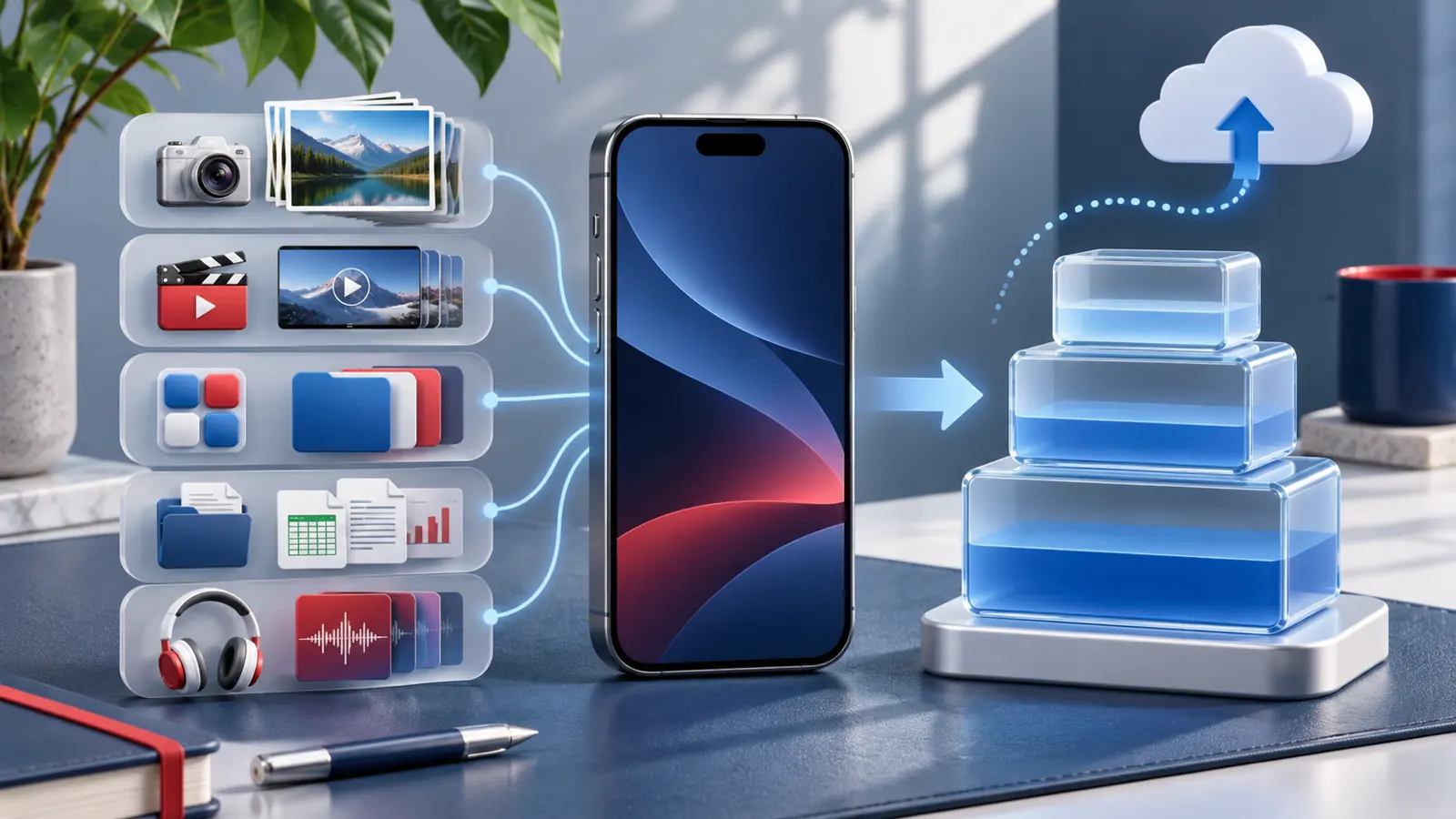
iPhone backup and data transfer
Compare exact products and confirm current retail details before making a journey or payment.
Create a current backup
Verify that important data is protected before the old phone is erased.
Prepare account access
Have the required account password and trusted contact methods ready.
Plan SIM or eSIM
Check what your network provider requires for the new device.
Verify before erasing
Open important apps, photos, messages and authentication tools on the new phone.
Do not erase the old phone too early
Keep the old device available until the new iPhone has completed setup and you have verified important data, communications, account access and network service.
Before starting the transfer
Use the same questions for every listing so your comparison stays fair.
- Recent backup
- Apple Account password
- Trusted phone number or device
- SIM or eSIM plan
- Reliable Wi-Fi
- Power for both devices
- Enough time to finish
- Important app sign-ins
- Verification before erasing
Prepare the old device
Review the data that matters and make a current backup using a method appropriate for your setup. Confirm that you know the required account password and can receive any verification prompts.
Update important apps where practical and make a separate plan for authentication apps, banking access or services that require device re-registration.
Choose a supported transfer method
Apple documents Quick Start, iCloud backup and computer-based transfer options. Requirements and timing differ, so follow Apple’s current instructions and keep devices connected to power when advised.
Plan for SIM or eSIM transfer as well. If the new phone needs a different arrangement, contact the mobile network provider before removing access from the old device.
Verify the new phone carefully
After setup, check contacts, messages, photos, notes, files and important apps. Confirm calls, mobile data and account verification before erasing or trading the previous phone.
If DPK Mobile is helping with a new device purchase, ask what setup assistance is currently available, what remains your responsibility and how much time to allow at the branch.
DPK Mobile in Ja-Ela and Kandana
Contact us first when you need a particular model, capacity, colour or accessory.
DPK Mobile Ja-Ela
EL 15/1, Ground Floor, Realty Plaza,
Ja-Ela 11350
DPK Mobile Kandana
No. 53, Colombo Road,
Kandana
Frequently asked questions
Can I check an iPhone upgrade availability before visiting?
Yes. Send DPK Mobile the exact product name or listing link and ask which branch currently has it before you travel.
Where is the Ja-Ela branch?
DPK Mobile Ja-Ela is at EL 15/1, Ground Floor, Realty Plaza, Ja-Ela 11350.
Where is the Kandana branch?
DPK Mobile Kandana is at No. 53, Colombo Road, Kandana.
Are guide pages a guarantee that an item is in stock?
No. Guides help you make a decision. Only a current product listing or direct confirmation from the team should be treated as an availability update.